From setup to smoother days
Add your child and pick routines. The bell rings on your phone. If they have their own phone or tablet, they can tap Done. Ages 4–8.
About 5 minutes to set up · Free to get started · No credit card
Four steps to a calmer family rhythm
Your phone is enough. About five minutes.
Add your kids
Create a profile for each child: name and a picture. About two minutes. Then pick the routines they should see.
Build your routines
Choose from templates (wake up, brush teeth, homework, dinner, bedtime) or build your own. Set the time and which days it repeats.
Show them, or let them tap
The bell rings on your phone. Hold it up and show them what's next: brush teeth, get dressed, bedtime. If they have their own phone or tablet, pair it once and they can mark it done themselves.
See what's done
You see today's list on your phone: done, missed, or still coming. No need to ask again.
See it in action
Your phone shows the day. Theirs can too, if they have one.
Set up once. Stop chasing everyone down.
See how the day is going without asking “did you do it?” for the fifth time.
- Set up routines in minutes with templates
- See today from your phone
- Know when a routine is done (no more "did you brush your teeth?" × 5)
- Set a prize and watch the stars add up
- · Today: done, missed, or still coming
- · Routines: a time and the days you choose
- · Prizes: one active prize on Free; up to five per child with Family Premium
- · Stars and streaks as routines get finished
Big buttons. What's next. Paired once per child.
A simple screen on their device so kids follow along on their own.
- See today's routines as pictures on their tablet
- Tap Done when a routine is finished
- Ages 4–8. Big buttons, no kid login
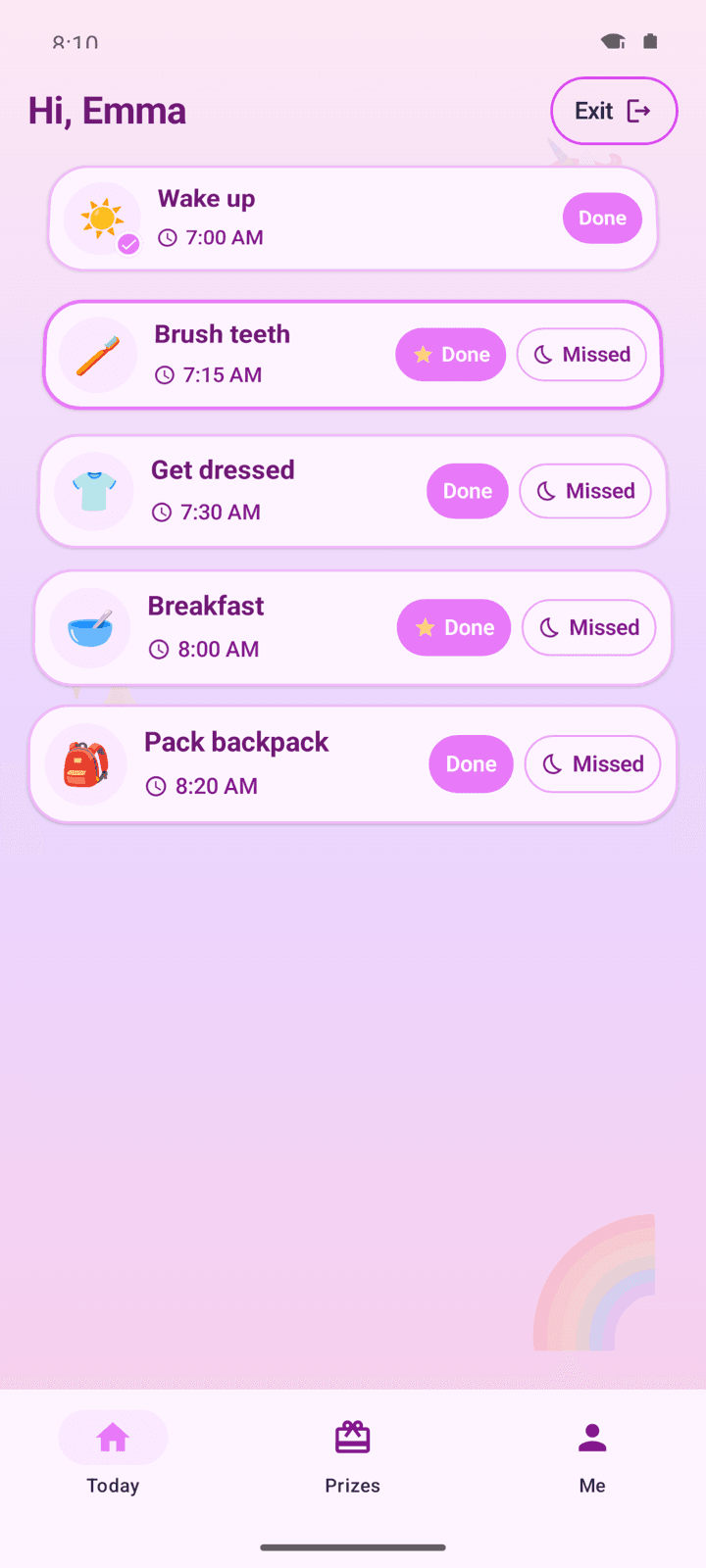
Kid home: today's routines, tap Done, stars toward a prize
- · Kid home: today's routines
- · A picture and a time for each one
- · Tap Done when it's finished
- · Stars toward a prize you set
- · A gentle bell when it's time
- · Paired by scanning a QR code — no kid email or password
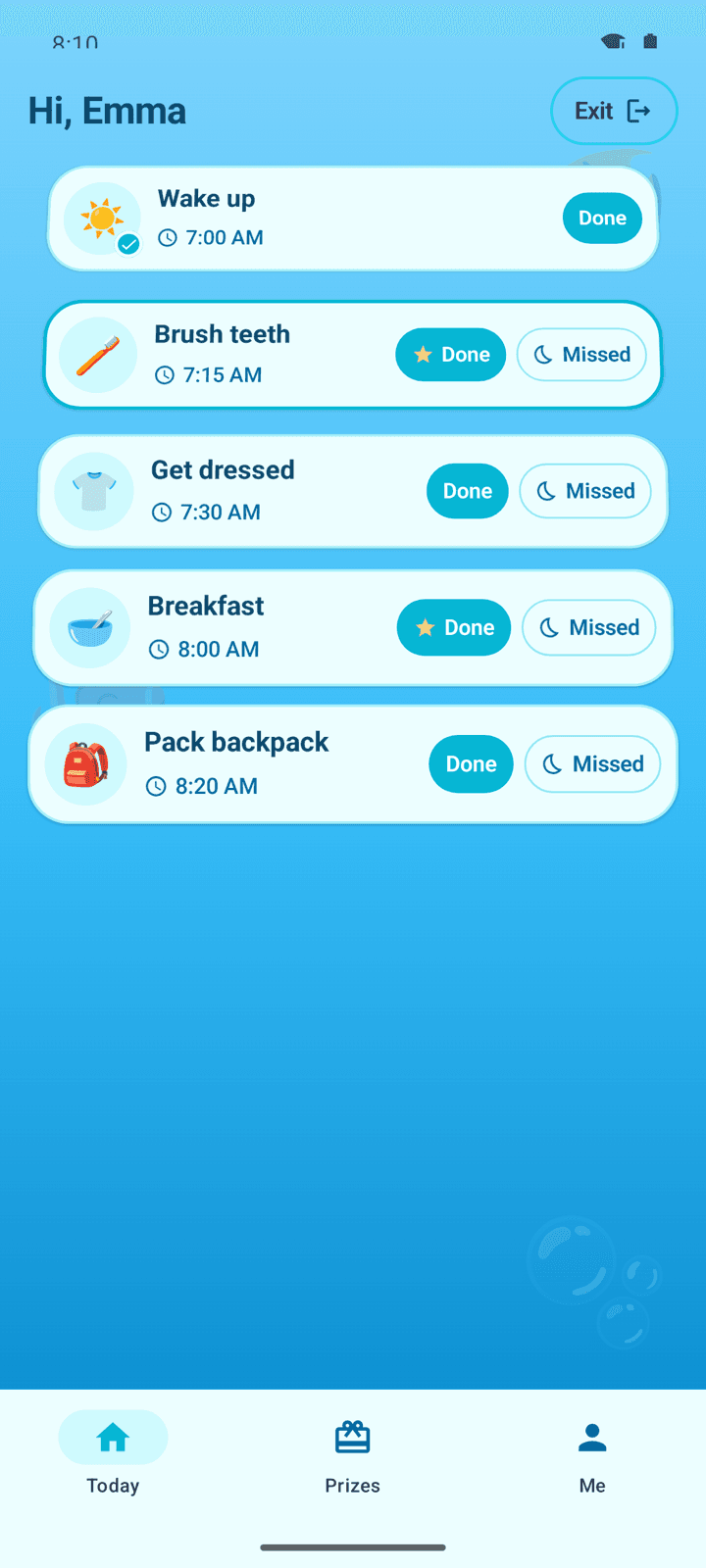
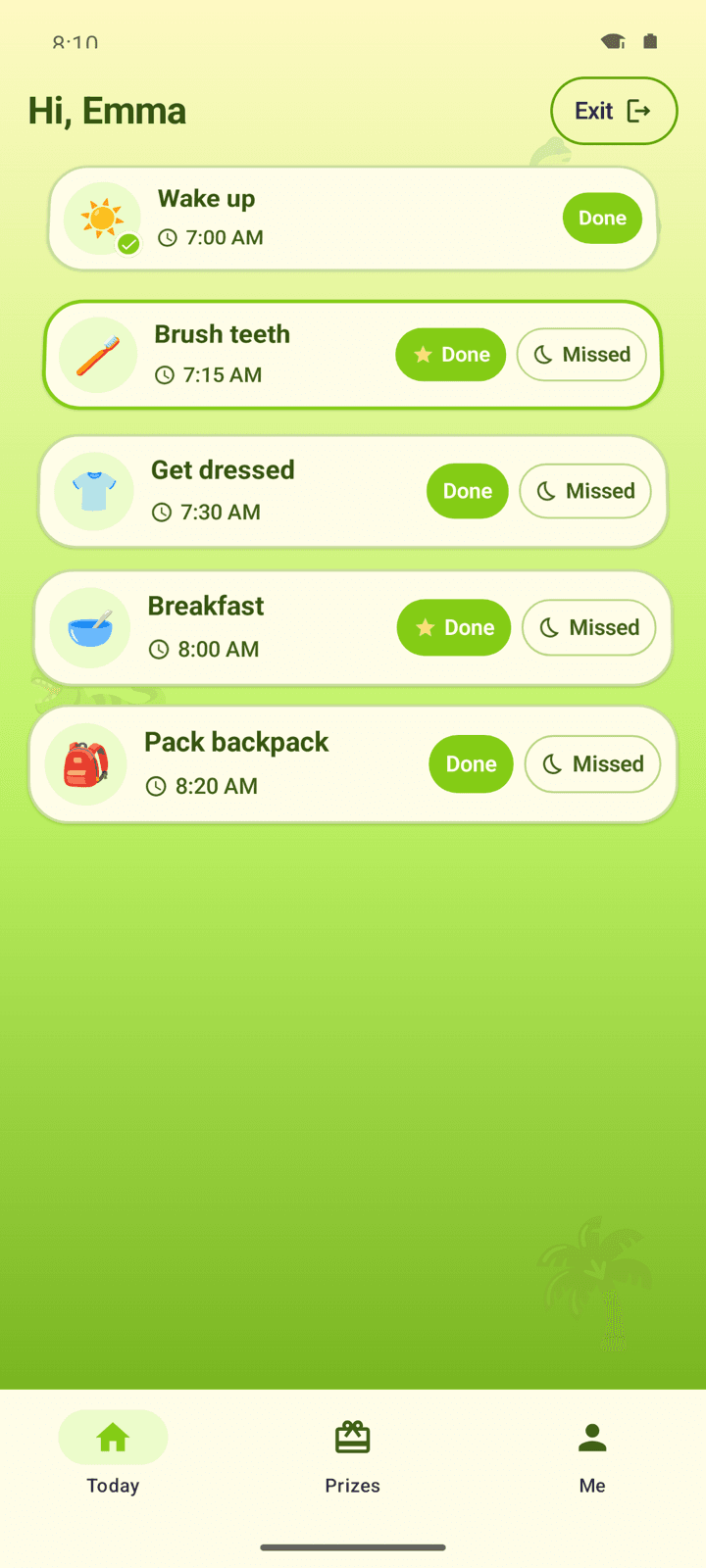
The same list, in their colors
Each child can pick a theme. The morning still reads as a picture, a time, and Done.
Unicorn Magic
Ocean Adventure
Dino Land
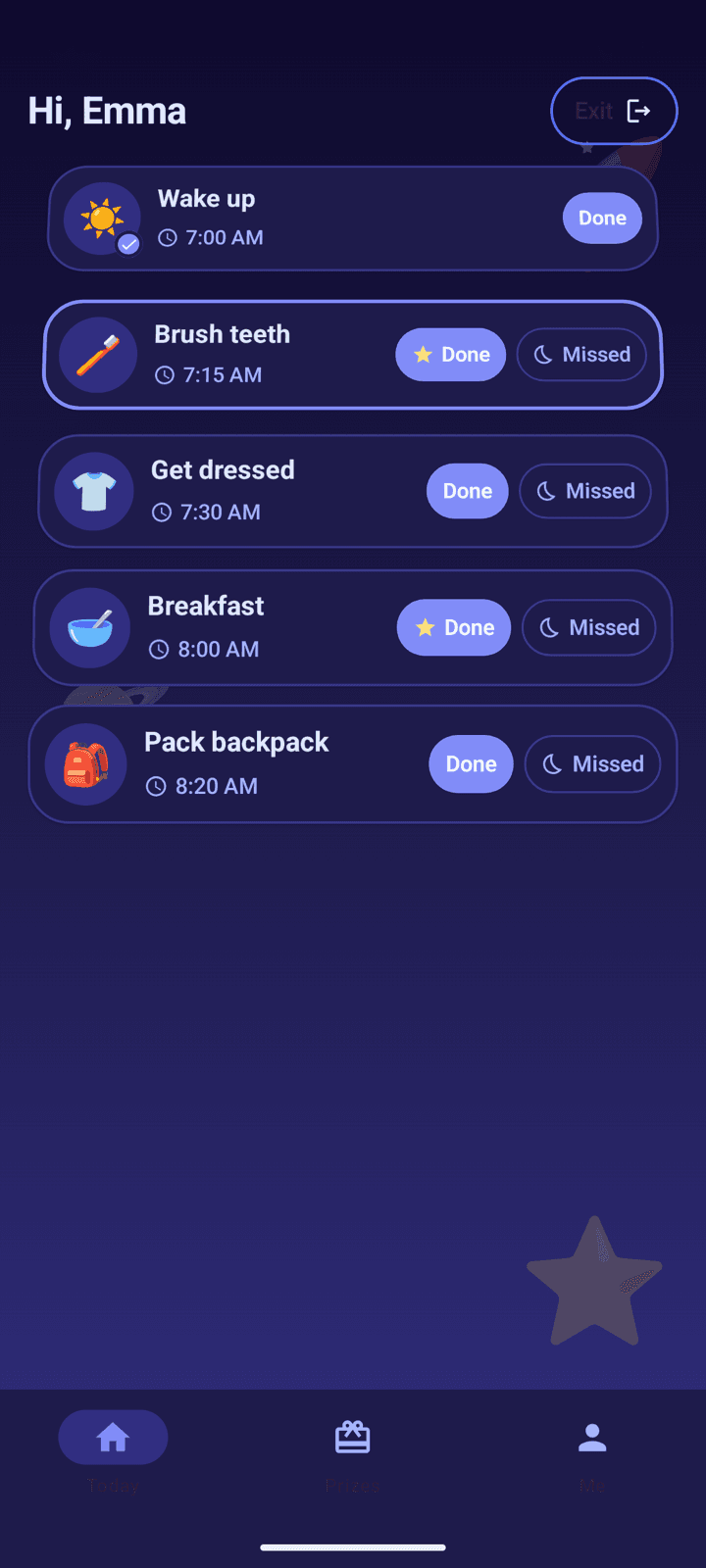
Space Explorer
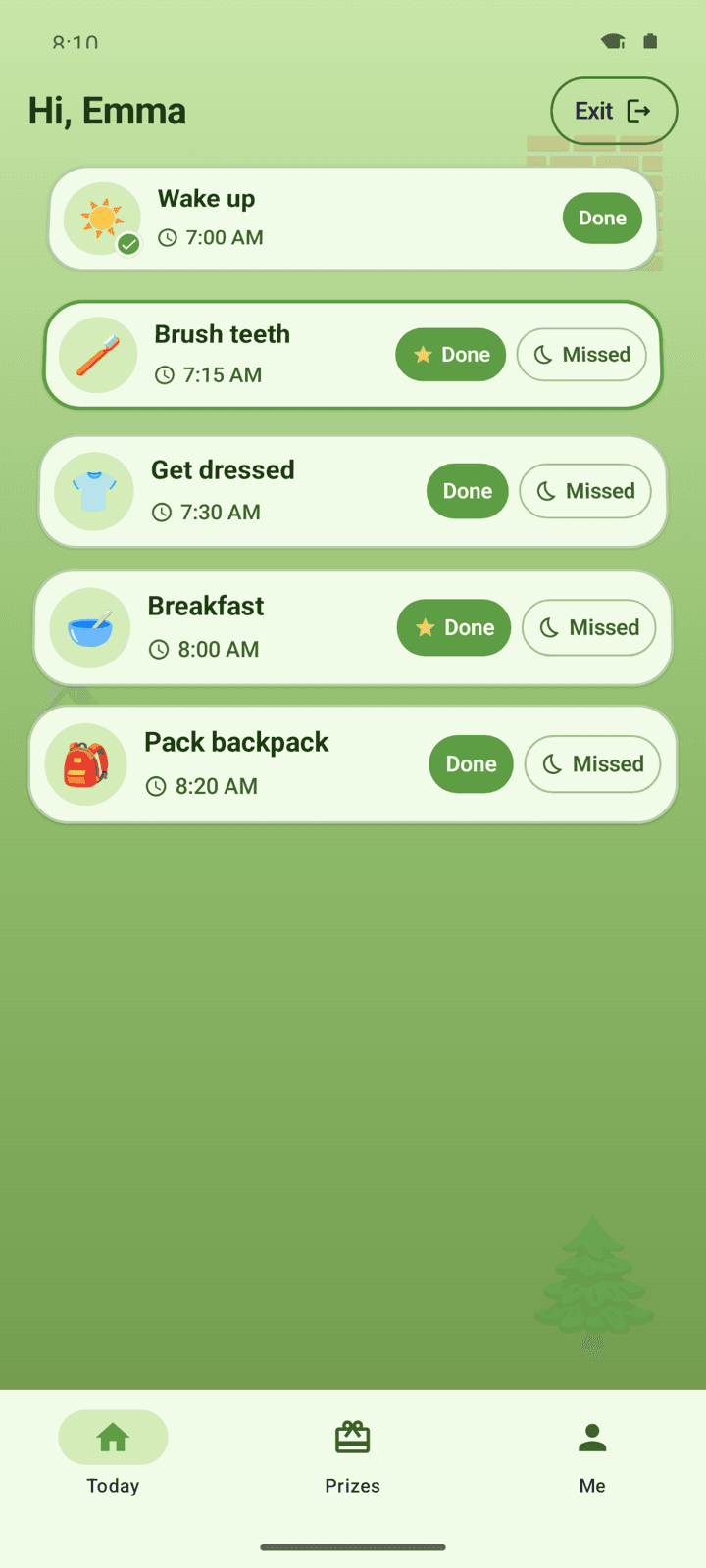
Block Builder
Who it's for
Built for real families, not perfect ones.
Ages 4–8
Each routine is a picture and a time, with a big Done button. Kids can follow the day without a login of their own.
Great for kids who need a clear day
One routine at a time, at a time you set. Predictable, and easy to see.
Your phone and their tablet
Same Android app. You set things up on your phone. They scan a QR code and use it on their tablet. An iOS app is coming.
Common questions
Quick answers before you sign up.
Does my child need their own phone or tablet?
No. The bell rings on your phone, and you show them what's next. If they already have a phone or tablet, they can tap Done themselves. Kids never need their own account.
How long does setup take?
About 5 minutes to add your child and create your first routine. You can always adjust as life changes.
Do kids need their own accounts?
No. You sign in on your phone. Their tablet pairs once by scanning a QR code. Kids never need an email or password.
What ages is Kiddobell for?
Ages 4–8. Each routine is a picture and a time, with a big Done button.
Is it really free?
Core routines are free forever for one child: the kid screen on a paired tablet, pictures, one prize, stars and streaks, cloud sync, and today's view on your phone. No credit card to start. Family Premium ($5.99/month or $49/year) is optional and adds more kids, up to five prizes per child, caregiver invites, and full history. Parents can sign in on more than one phone with the same account.
What's free, and what needs Premium?
Your first child's routines, kid screen, one prize, stars and streaks, cloud sync, and today's view are free forever. Family Premium adds more kids, up to five prizes per child, full history beyond 7 days, and caregiver access (view prizes and mark gifts given). If Premium ends, extra prizes are archived (one kept per child) and caregiver access is revoked. Another parent who needs the full app can sign in with the same household login. You can upgrade or cancel anytime. Your routines stay yours.
Can kids customize how Kiddobell looks?
Yes. Kids can personalize their profile with themes and illustrated avatars on every plan.
Where do we get the app?
KiddoBell is an Android app. Install it on your phone and on their tablet. An iOS app is coming. Free and Family Premium are the same on both.
More questions? See all FAQs on the homepage · Features · Pricing
Ready for calmer days?
Install the Android app and set up your first routine. Free to get started. No credit card.